
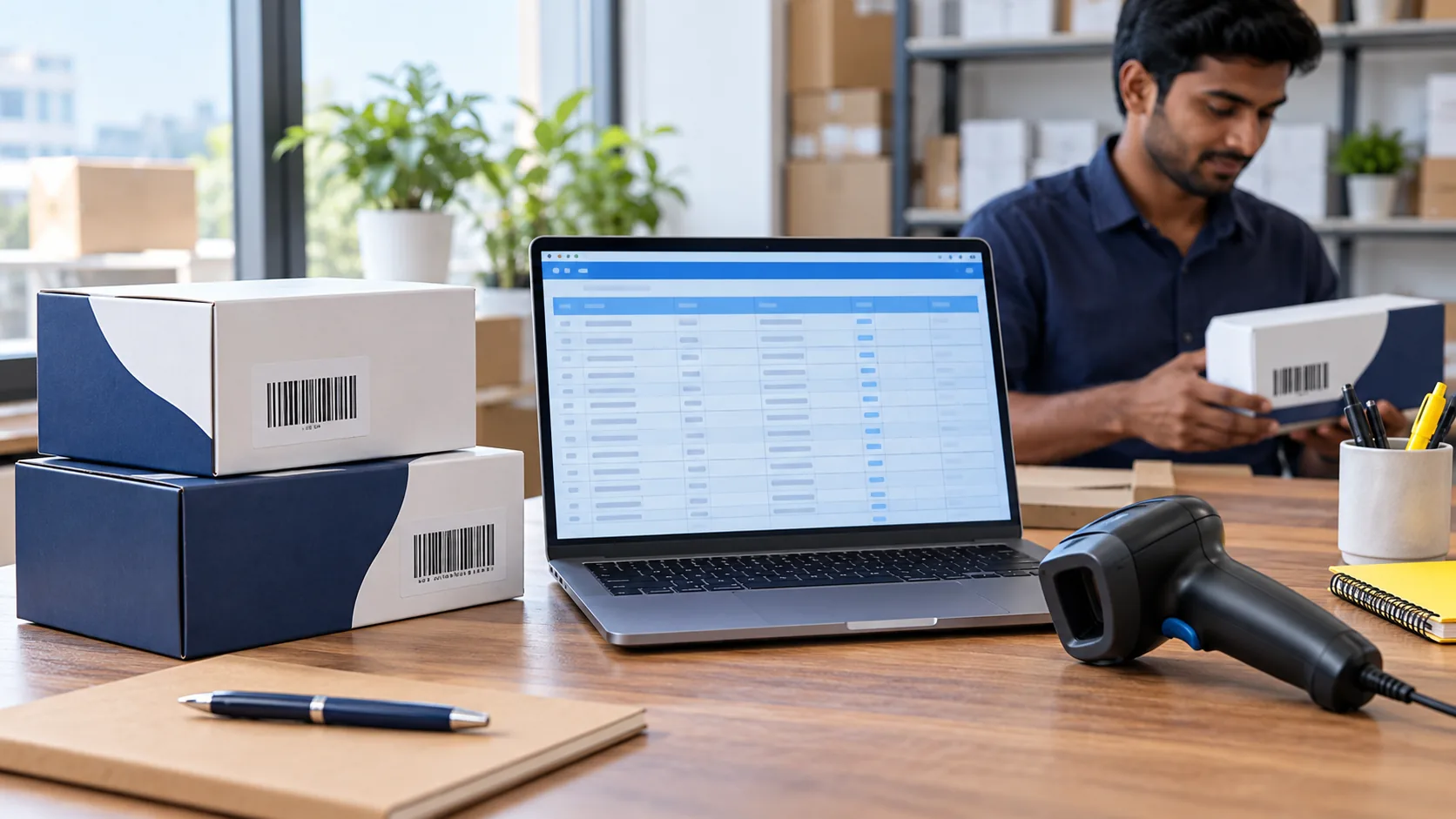
You send a product sheet to a retailer. A few minutes later, it comes back with a simple question: why do some barcode numbers have a digit missing?
The original list was correct. Somewhere between opening, editing and sharing the file, Excel treated an identifier as a number. This is easy to miss when you are busy preparing labels or uploading a catalogue.
To keep barcode numbers correct in Excel, store the identifier column as text before entering or importing data. Keep the original source file, and compare the final export with that source before sending it to a retailer or printer.
Why can Excel change a barcode number?
Excel normally interprets digits as values for calculations. That can remove a zero at the beginning or display a long value in scientific notation. Product identifiers need their exact characters preserved, so text storage is usually the safer choice.
A value displayed with an E and a plus sign is not automatically damaged. Check the underlying value against the original. Excel's 15-significant-digit limit affects numerical values containing 16 or more digits; a 13-digit identifier is below that limit, although leading zeros can still disappear.
Think of the identifier as a reference you copy exactly, like a document number. Nobody needs to calculate the average barcode of a product range.
Set up the column before adding your numbers
Select the empty identifier column, open Format Cells, and choose Text. Then enter the original values. Changing the format after a zero has already disappeared does not recover it.
If you receive an existing workbook, keep an untouched copy. Do your editing in a separate working version, and check that the identifier column still matches the supplied list.
For example, a tea brand may have separate rows for its 100 g and 250 g packs. Keep each approved identifier beside the corresponding pack description throughout the handoff. A perfectly preserved number attached to the wrong product is still an error.
Import CSV files deliberately
Opening a CSV directly lets Excel interpret the columns using its current defaults. Use Data > From Text/CSV when you need control over the import.
- Select the original CSV file and open the transformation or editing view.
- Set the identifier column's data type to Text.
- In Power Query, replace or remove an earlier automatic numeric-conversion step for that column. Converting an already altered value to text will not restore lost characters.
- Check the preview against the source before loading the result.
Menu labels vary by Excel version. The important outcome is that the source characters reach the sheet unchanged.
Keep your editable master as an XLSX workbook. Export a CSV copy when the receiving system requests it; CSV does not retain Excel cell-format settings. Reopening it can trigger interpretation again.
Do not repair missing digits by guessing
If a retailer reports a short identifier, return to the approved source list. Do not automatically add a zero to every short entry or change the final digit until a form accepts it.
The receiver might expect a different field representation, or you might have copied an internal SKU into the wrong column. Ask what the upload field requires and reconcile it with the original identifier.
For the distinction between those fields, read our guide to SKU vs barcode. This Excel workflow is about protecting the data you already have.
Keep the master sheet easy to hand over
A practical product sheet should let a colleague match the number to the item without opening five other files. These are suggested fields, not a universal retailer template:
| Field | What to record |
|---|---|
| Product and variant | Exact name, colour, flavour, size or pack description |
| Internal SKU | Your own stock reference, in a separate column |
| Assigned identifier | The approved value stored as text |
| Artwork filename | The matching barcode artwork supplied to the designer |
| Approval record | Who checked the mapping and when |
When arranging the list, keep each complete product record together. Ask a second person to review changed rows before a large label run. This is especially useful when two packages look almost identical.
Check the handoff, not just the worksheet
Before sending a file, compare the source list, working sheet and final export. Pay particular attention to identifiers beginning with zero, recently edited rows and products with similar names.
Where the receiving system offers an import preview, inspect it before confirming the upload. After import, check that the expected product and identifier remain connected. Keep the accepted file alongside the approval record so the team knows which version was used.
Newer supported Excel editions also offer Automatic Data Conversion controls. These can prevent selected conversions, including leading-zero removal, and provide warnings when opening CSV or text files. Check the options available in your edition rather than assuming another colleague has the same settings.
Using your YesBarcode number list
YesBarcode's current EAN-13 packages include an Excel number list and JPG and SVG artwork. Keep the supplied list as your reference when assigning numbers to your product records and sharing files with your designer.
If you are preparing a new range, confirm your retailer or marketplace's identifier requirements before purchasing. For an existing range, fix a spreadsheet-handling problem by checking the original data first; it does not automatically mean you need to buy replacement numbers.
Frequently asked questions
Should barcode numbers be stored as text in Excel?
Yes. For a product master sheet, text helps preserve the exact identifier, including any leading zeros.
Will changing a damaged cell to Text restore missing digits?
No. Recover the correct value from your approved source and enter or import it again using text storage.
Does scientific notation mean the barcode number is wrong?
Not necessarily. Compare the underlying value with the source before deciding whether anything was lost.
Why does the problem return when I reopen a CSV?
CSV does not preserve Excel's cell formats. Excel may interpret the column again, so import it with the identifier field set to text.
Does a correct spreadsheet guarantee that a printed barcode will scan?
No. Checking data and checking a printed label are separate tasks. Compare the encoded value with the approved product record and test the finished label through your normal packaging-quality process.