
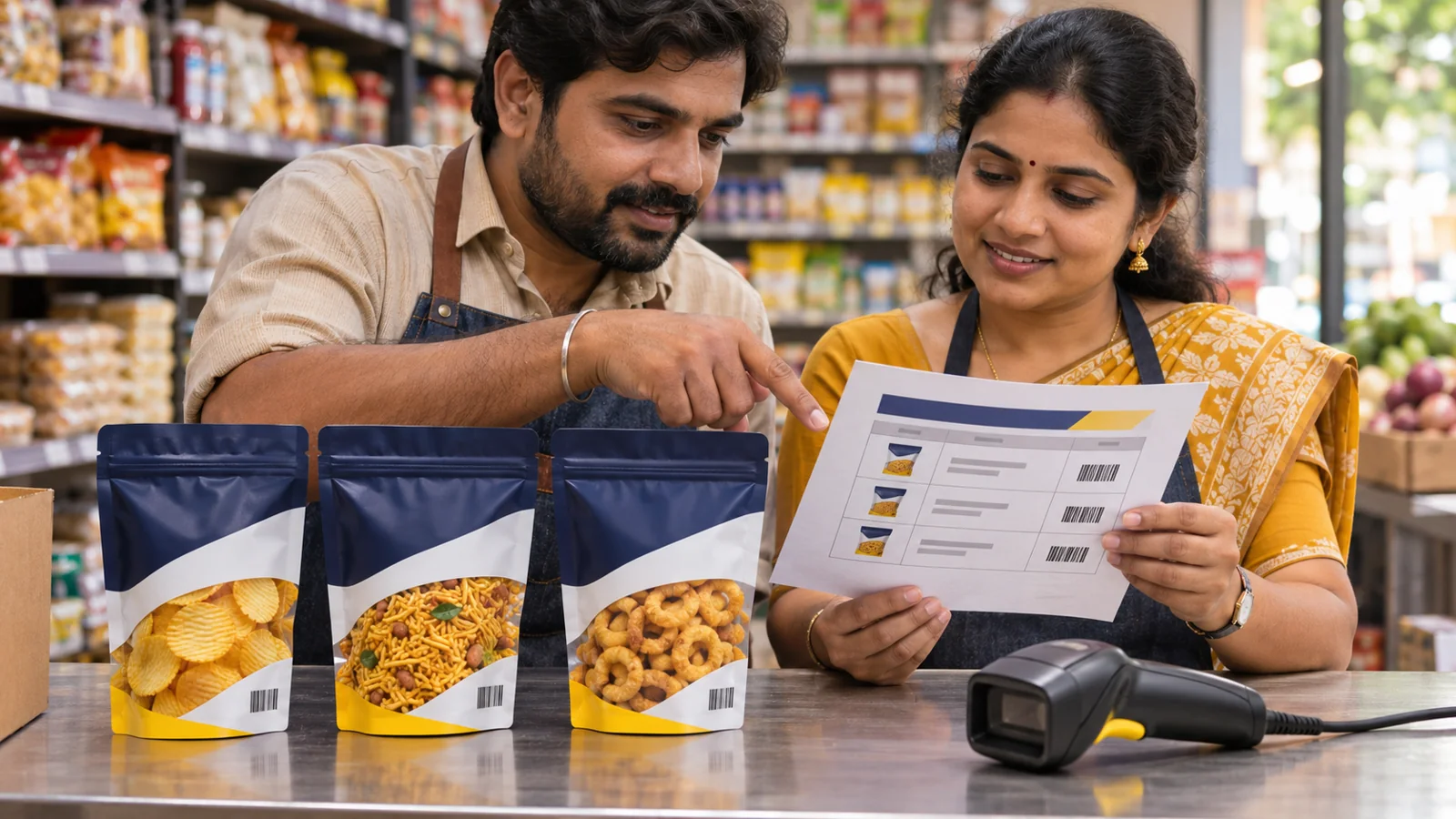
A supermarket buyer likes your roasted snacks and asks for a product list. You send a price PDF and photos from your phone. The receiving team comes back with a question: does “masala 60” mean the 60 g pouch or a case containing 60 pouches?
A product data sheet for a retail buyer gives the buyer’s team enough information to set up each item, order the right quantity and recognise the stock when it arrives. Start with the buyer’s template. If they haven’t sent one, use one row per sellable variant and keep the consumer pack and wholesale case clearly labelled.
Ask the buyer what their team needs to set up
Before you build a spreadsheet, ask for their current item setup template, the columns they require and the identifier formats they accept. Find out whether they buy by retail unit, inner pack or case. The person who approves the range may be different from the person who loads the catalogue or receives the shipment. A short conversation now can save several rounds of corrections later.
One useful question is: “When your order says quantity 10, will that mean 10 pouches or 10 cases?” Confirm the answer in writing. If each case holds 12 pouches, those two interpretations mean 10 versus 120 retail units.
Put each sellable variant on its own row
Imagine your first listing consists of a 30 g masala pouch, a 60 g masala pouch and a 60 g lightly salted pouch. Give each variant a clear description and its own assigned identifier. The two 60 g products share a weight, but the buyer needs to distinguish their flavours. The two masala products share a flavour, but the buyer needs to distinguish their sizes.
| Buyer-facing description | Supplier SKU | Retail identifier | Ordering unit |
|---|---|---|---|
| Roasted makhana, masala, 30 g pouch | MK-MAS-030 | Copy from the approved 30 g masala record | Case of 12 pouches |
| Roasted makhana, masala, 60 g pouch | MK-MAS-060 | Copy from the approved 60 g masala record | Case of 12 pouches |
| Roasted makhana, lightly salted, 60 g pouch | MK-SLT-060 | Copy from the approved 60 g salted record | Case of 12 pouches |
These are illustrative records, not product numbers. In your sheet, enter the actual identifier exactly as assigned, store it as text and check it after exporting. Keep your internal SKU in its own field. Put the buyer’s item code in a separate field if they supply one.
Separate shelf information from ordering information
- Retail item: brand, product name, variant, declared net quantity and unit, retail identifier, and a matching pack photo.
- Order and receiving: ordering unit, retail units per case, and the case identifier if applicable. Supply dimensions or weights for the correct packaging level when requested.
- Commercial information: the fields the buyer asks for, such as agreed unit or case pricing. Label the basis of each price clearly.
- Contacts and corrections: supplier contact, sheet version and date. Keep a copy of the version the buyer approved.
If the buyer requires a separate case identifier, record it in a case field or separate case row according to their template. Don’t paste the consumer barcode into a case field to fill a blank. Confirm the required identifier and scanning format before finalising case artwork.
Make the photo, barcode and sample agree
Pull a finished sample for each line. Look at the product description and net quantity, compare the pack photo, then scan the barcode and match the digits to the approved sheet. For the two 60 g pouches, check the flavour as well as the weight. Near-identical packaging is exactly where a copied photograph or identifier can go unnoticed.
Tell the buyer which files are final. Name the images by SKU or with the buyer’s required convention. If a pouch photo still shows a prototype, replace it before handing the files over. The buyer should be able to identify the right image without opening five attachments.
Run one receiving test before releasing the full order
- Send a small sample set and the same sheet your dispatch team will use.
- Ask the buyer to confirm the item description and unit that appear in their system.
- Check that one case in the order converts to the agreed number of retail units in the receiving workflow.
- Record the approval and use that version of the sheet for the first shipment.
If the scan returns the correct number but shows no item, confirm whether the receiving system has loaded the record. If the number itself is wrong, check the label and approved artwork before editing the buyer’s catalogue. The checkout troubleshooting guide explains how to separate those problems.
If the buyer’s requirements are confirmed and you still need identifiers for eligible products, review YesBarcode’s EAN-13 packages, which include JPG and SVG artwork and an Excel number list. Match each assigned number to the buyer’s item setup sheet before sending files to print.
Frequently asked questions
What is a retail product data sheet?
It is the product information a buyer uses to set up and order your items. It typically pairs each variant’s description and identifier with pack quantities and any fields the buyer requests.
Can I send my price list instead?
Use the buyer’s required template. A price list can support it, but may omit fields such as the product identifier, ordering unit and units per case.
Should the retailer’s item code replace my barcode number?
Keep them separate. The buyer’s internal item code and the retail product identifier can both refer to the same product while serving different systems.
What if a retailer orders by case but sells by pouch?
Record the retail item and the case configuration distinctly. Confirm how many pouches are in a case and ask whether the buyer requires a separate case identifier.