
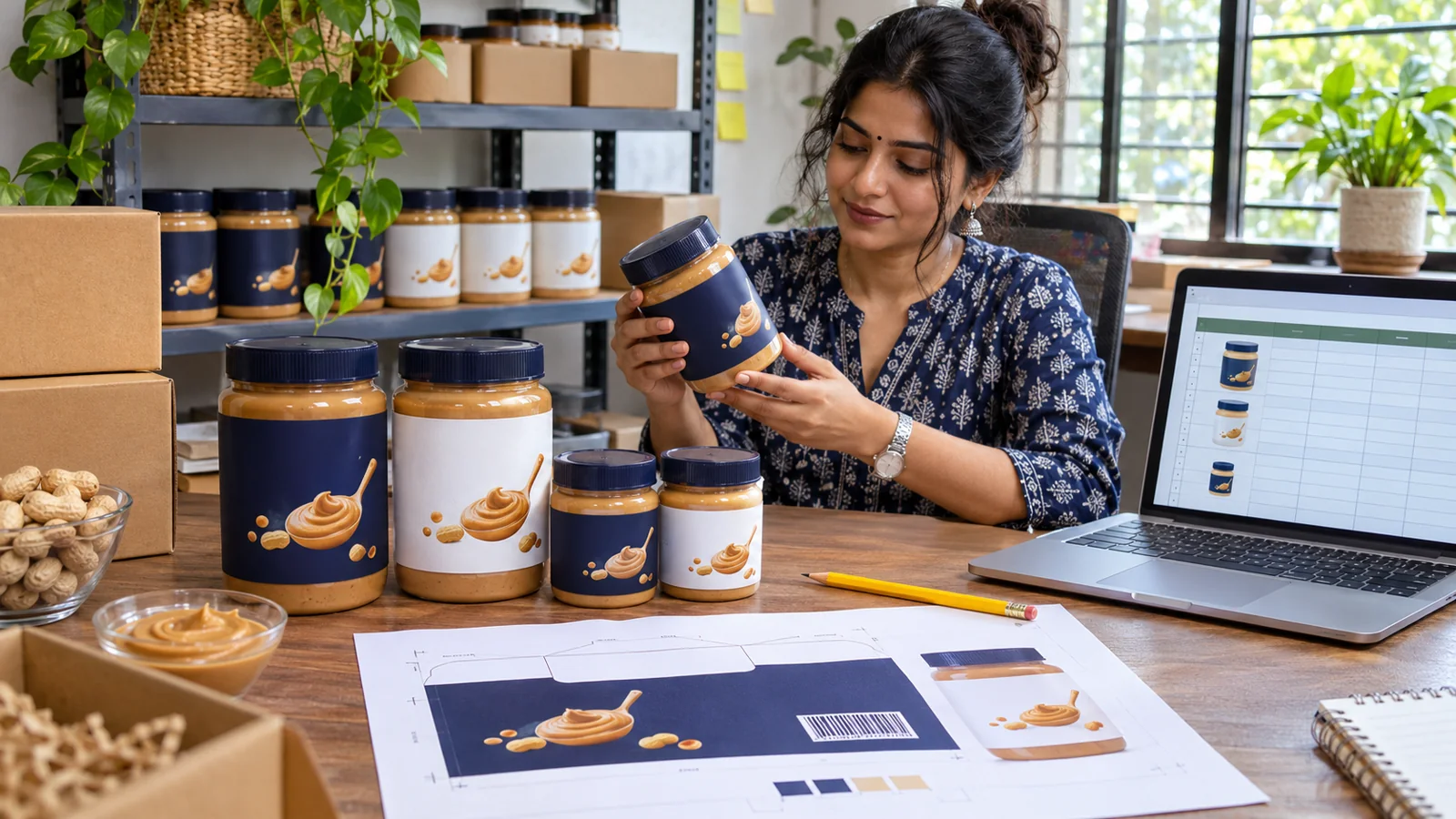
You’ve ordered a barcode for your product. Your designer asks for the artwork, the retailer asks for the number, and your packing team wants to know which label goes on which box. They’re all asking about the same product, but they need different things.
A YesBarcode EAN-13 package includes assigned barcode numbers, JPG and SVG barcode artwork, and an Excel number list. Before buying, check which identifiers your retailer or marketplace accepts. After purchase, assign each number to the right product in your records before sending artwork to print.
What each file is for
| What you receive | Who uses it | What to check |
|---|---|---|
| Assigned barcode number | The person managing your product catalogue or retailer submission | Copy the number exactly and tie it to the correct product variant. |
| SVG barcode artwork | Your designer or print supplier | Confirm the format the printer accepts and check the symbol on the final proof. |
| JPG barcode artwork | A team that needs a preview or a raster image | If it will be printed, ask the printer to confirm its suitability at the intended size. |
| Excel number list | The person assigning numbers to products | Keep an approved record of which number belongs to each SKU, size and pack. |
Match numbers to products before opening the artwork
Suppose you sell a 250 g jar of peanut butter, a 500 g jar and a sealed two-pack of the 250 g jars. These are three retail offers. Assign each its own appropriate identifier and write the full product description beside it. Otherwise, a designer who sees two files labelled “peanut butter” may put the 250 g symbol on the 500 g label.
Keep one approved list with the internal SKU, product name, size, pack quantity, assigned number and artwork filename. Send the designer that list together with the relevant barcode files. If you haven’t counted the offers yet, use our guide to how many barcodes your brand needs.
What a barcode purchase does not do for you
Receiving an artwork file doesn’t create a retailer listing or enter a selling price in a billing system. Those details belong in the product record used by that channel. Likewise, a barcode that scans on a screen hasn’t yet been tested on the finished pack.
Ask your retailer what it needs for item setup and whether it has specific identifier or verification requirements. If someone has supplied a barcode image without a clear link to the assigned product number, resolve that before reusing the artwork.
Check one finished pack before the full print run
- Compare the digits below the symbol with the number in your approved product list.
- Check that the variant and pack quantity printed on the proof match that record.
- Scan a finished sample at the intended print size and compare the result with the approved number.
- Where possible, check that the buyer’s system opens the intended product. Arrange formal print verification separately if the buyer requires it.
If your sales channel accepts the identifier route and you know how many products you need to cover, view YesBarcode’s EAN-13 barcode packages. Choose the package based on the distinct offers you actually plan to sell.
Frequently asked questions
Do I receive just a barcode image?
No. YesBarcode’s EAN-13 packages include assigned numbers, JPG and SVG artwork, and an Excel number list.
Which file should I send to my designer?
Send the original artwork in the designer’s agreed format, along with the product record that shows which number belongs on that pack.
Will buying a barcode automatically create my product listing?
No. You still need to submit or set up the product record according to the retailer or marketplace’s requirements.